When working with AI-generated images, what I dread most is not generation failure, but rather having the workflow broken down into too many fragmented steps. First, generate the image in one tool, then switch to another to adjust the colors, followed by zooming in, widening the shot, and tweaking the lighting. Each time you make a change, you need to restate the reference image, the prompt, and the intended modifications.
This video quickly walks through five image tools within the same interface: Image Generator, Image Editor, Image Upscaler, Variations, and Relight. It’s more like a capability showcase—no frame-by-frame screen recording—but it does clearly demonstrate what problem each tool is meant to solve.
I put it into a more suitable route for the actual project: first determine the basic picture, and then make local modifications; After the main body and composition are stable, expand the lens, then test the light, and finally make high-resolution output.
01 | Image Generator: First make a basic drawing that can be processed continuously.
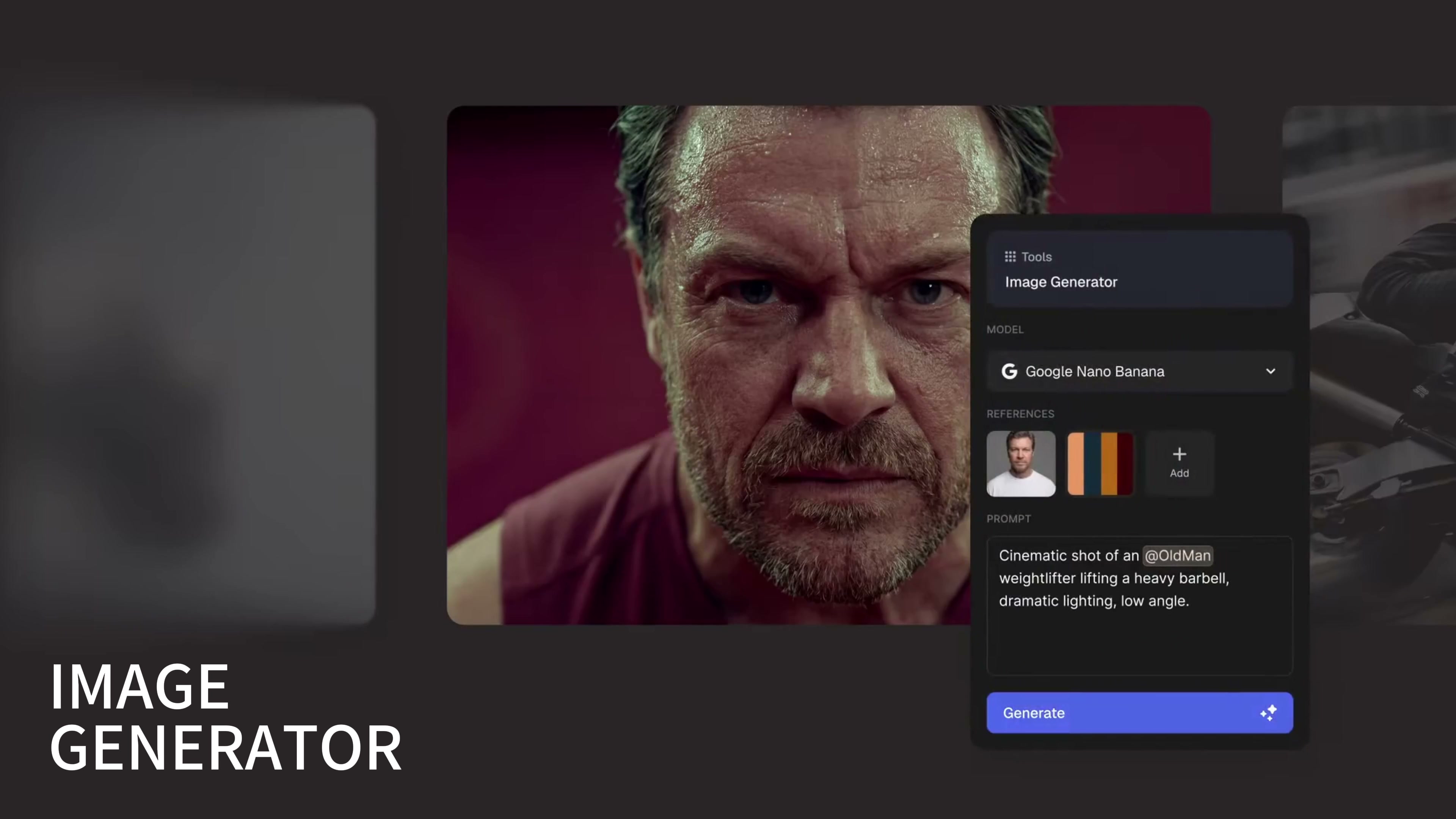
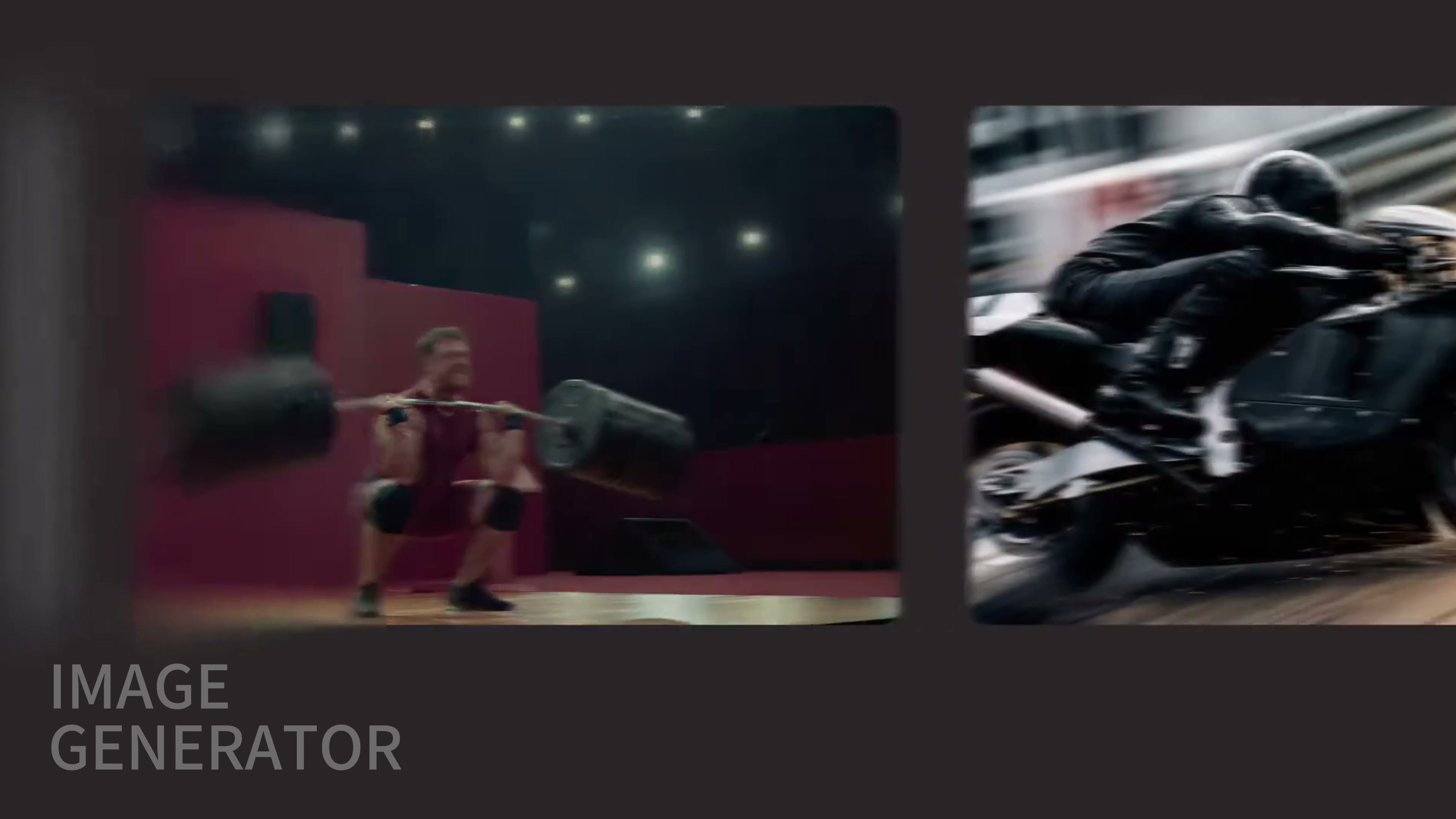
The video starts with the Image Generator. Place a character reference in the interface, and use a scene description to generate a weightlifter. The goal here isn’t to produce the final cut in one go, but rather to first bring the characters, actions, settings, and overall color tone into a single composition.
When I write this type of prompt, I separate the character traits from the scene requirements. Character references define facial features, age, and overall demeanor, while text specifies poses, attire, camera angles, and settings. In the first round, as long as the main body's recognition and action logic stand, you can go down. The small print in the background, the details of the equipment and the hands still need to be checked separately.
02|Image Editor: Modify only one specific variable at a time
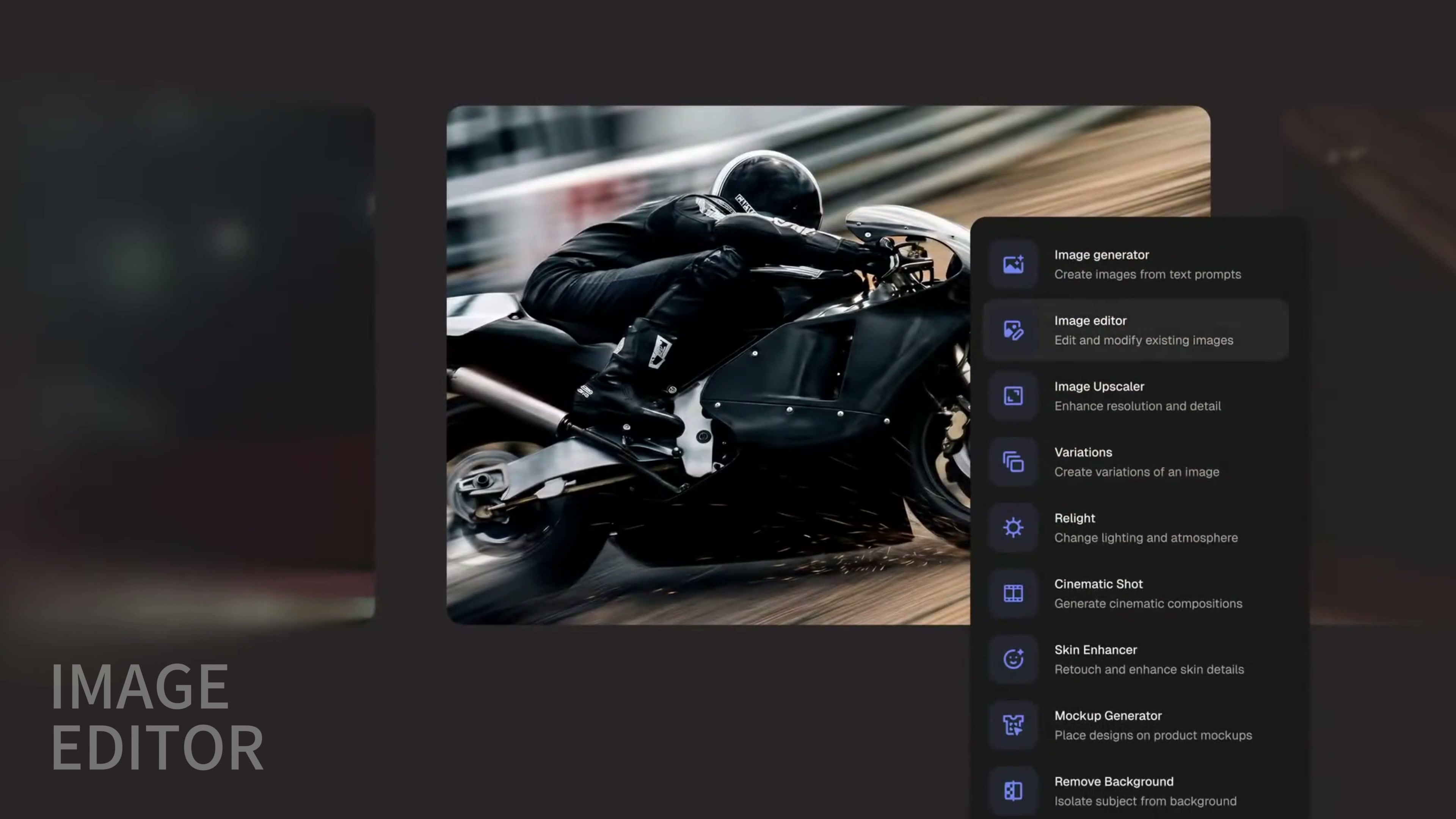
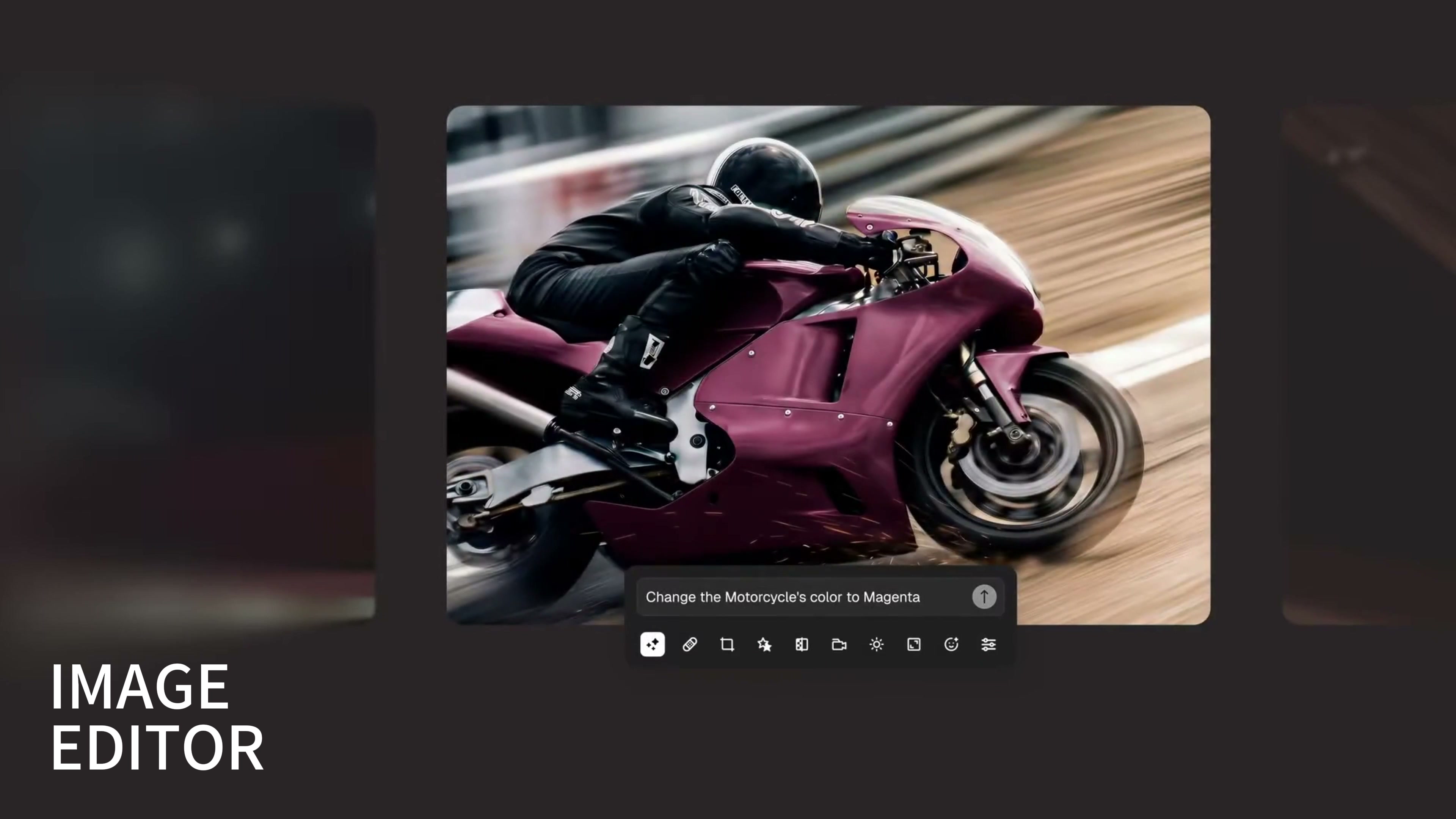
The second segment cuts to the Image Editor. The original image is of a black motorcycle speeding along; the editor requested that only the body of the bike be changed to magenta. The characters’ poses, the sense of motion in the road, the camera angles, and the background’s speed effect have all remained unchanged.
This type of task is best written as “retained items + modified items.” For example: Keep the rider, composition, vehicle structure, and surroundings intact, while only changing the color of the motorcycle’s bodywork. The more specific the modification range, the less likely the model is to inadvertently alter the tires, reflectors, clothing, or background. Once the results are ready, I’ll compare the original image side by side with the edited version, first checking the composition and then verifying whether the colors accurately reflect the material’s texture.
03|Image Upscaler: Enhance resolution after the image is finalized.
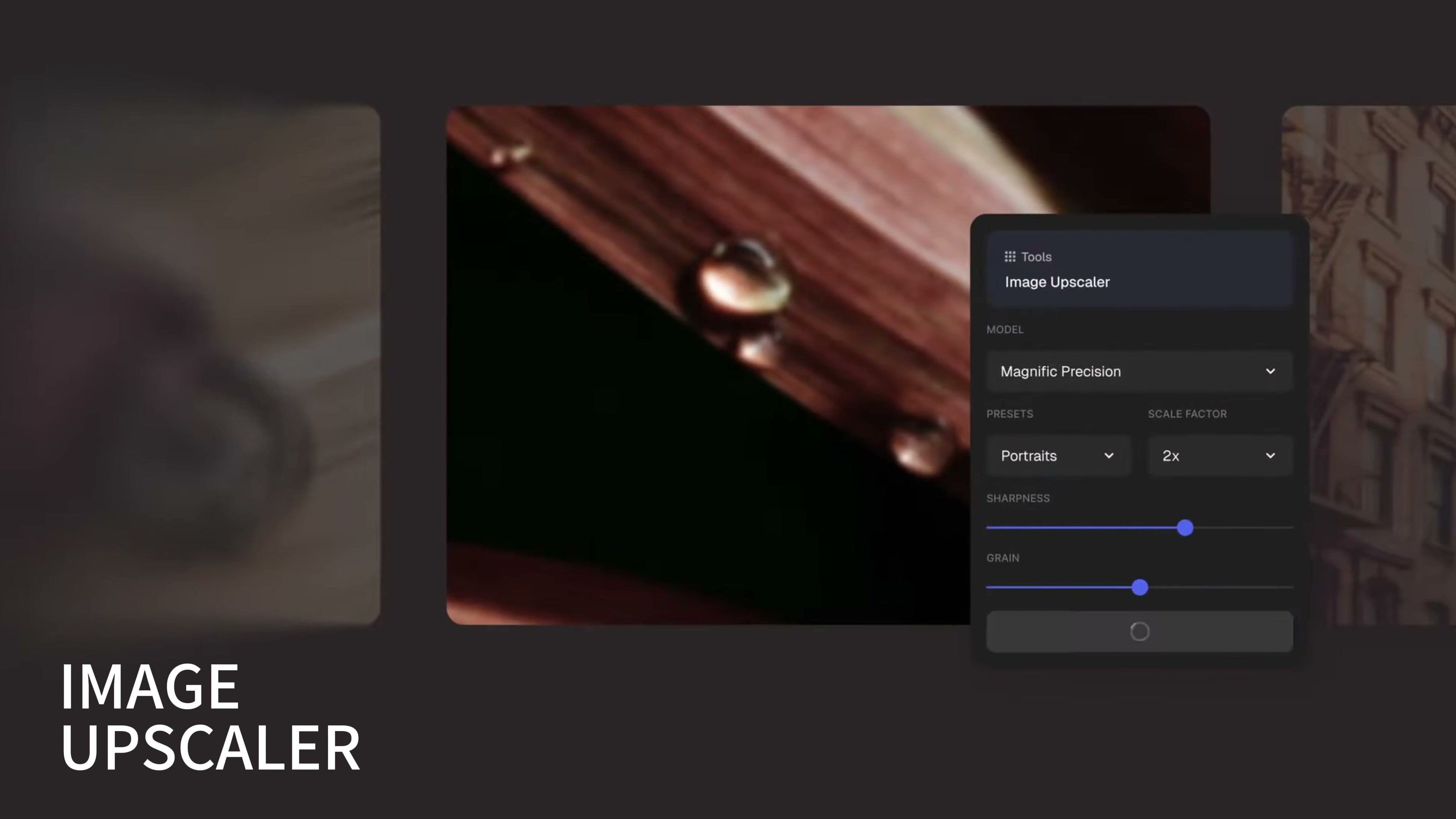
The third tool is Image Upscaler. The panel in the video can see the enlarged model, output direction, 2 × magnification and detail control slider, while the preview area is enlarged to the junction of metal and wood grain, which is convenient to check the detail recovery.
Amplification is not the sooner the better. If the subject, color or composition is still undecided, zooming in first will only make later changes slower. I usually perform this step after confirming the base image, with a focus on skin textures, product edges, repeating patterns, metallic highlights, and small text. Increased sharpness does not necessarily mean that the details are accurate; textures that have been synthesized by the model still require manual verification.
04|Variations: Expanding a single frame into a sequence of shots
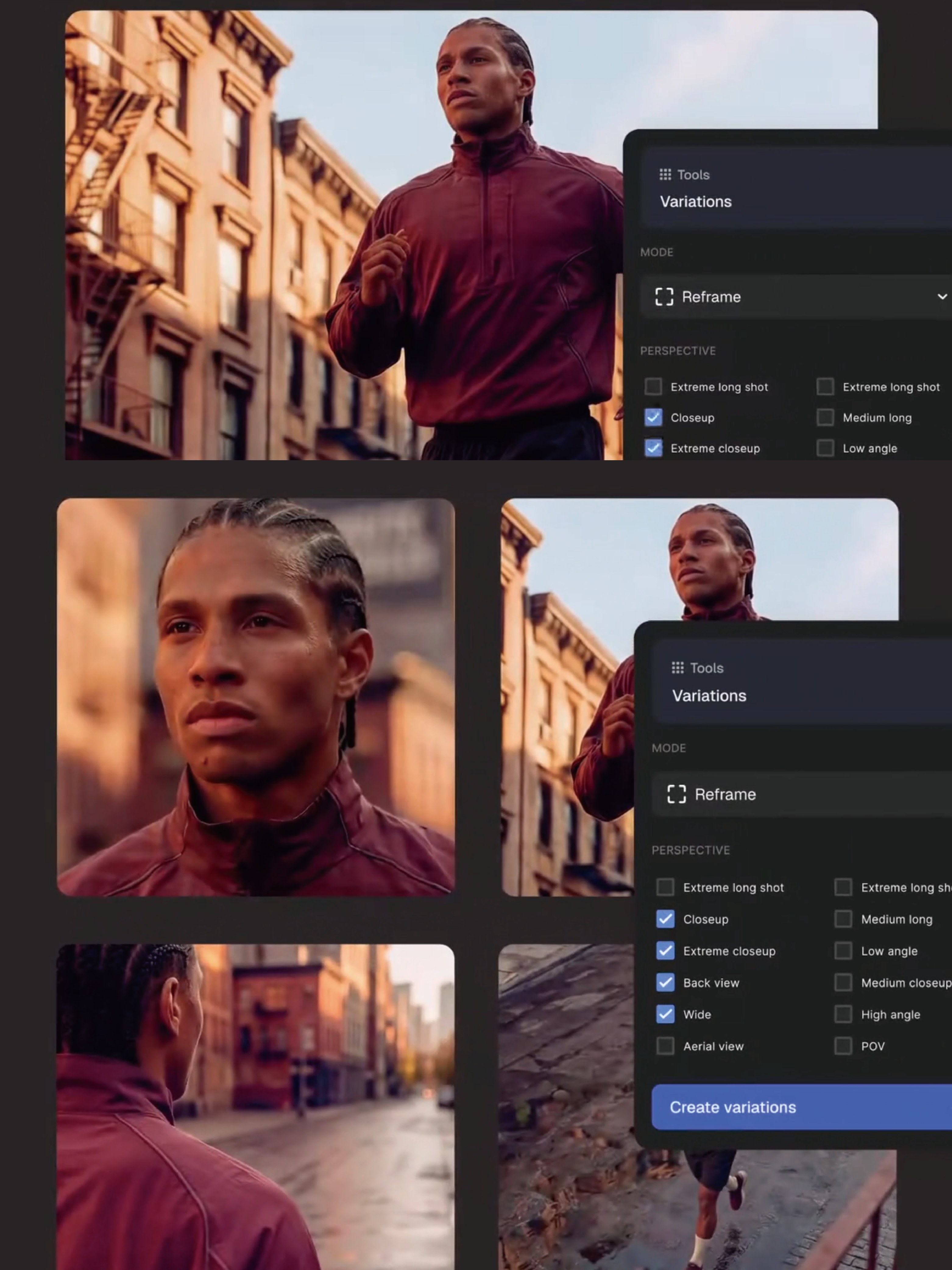
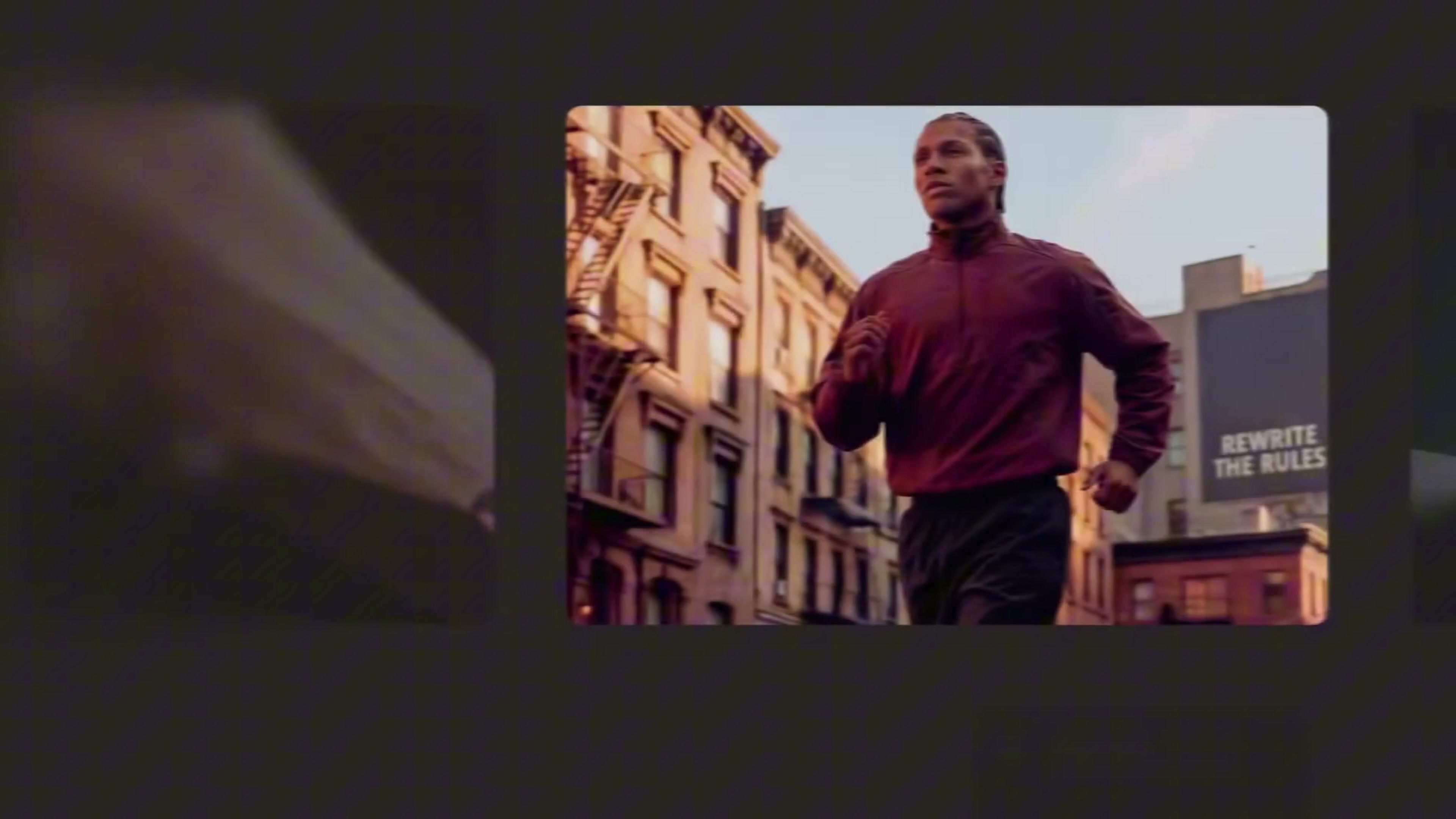
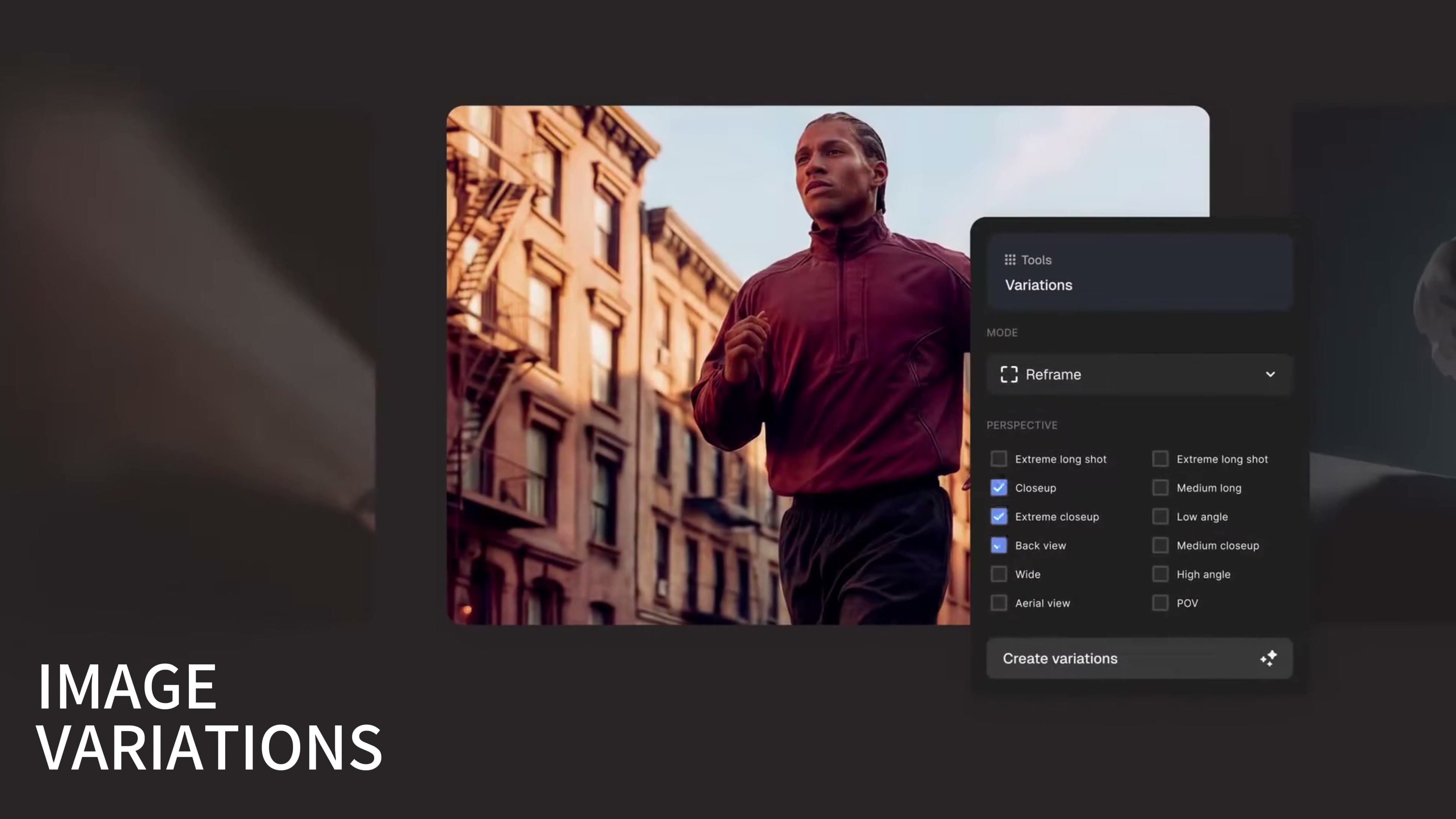
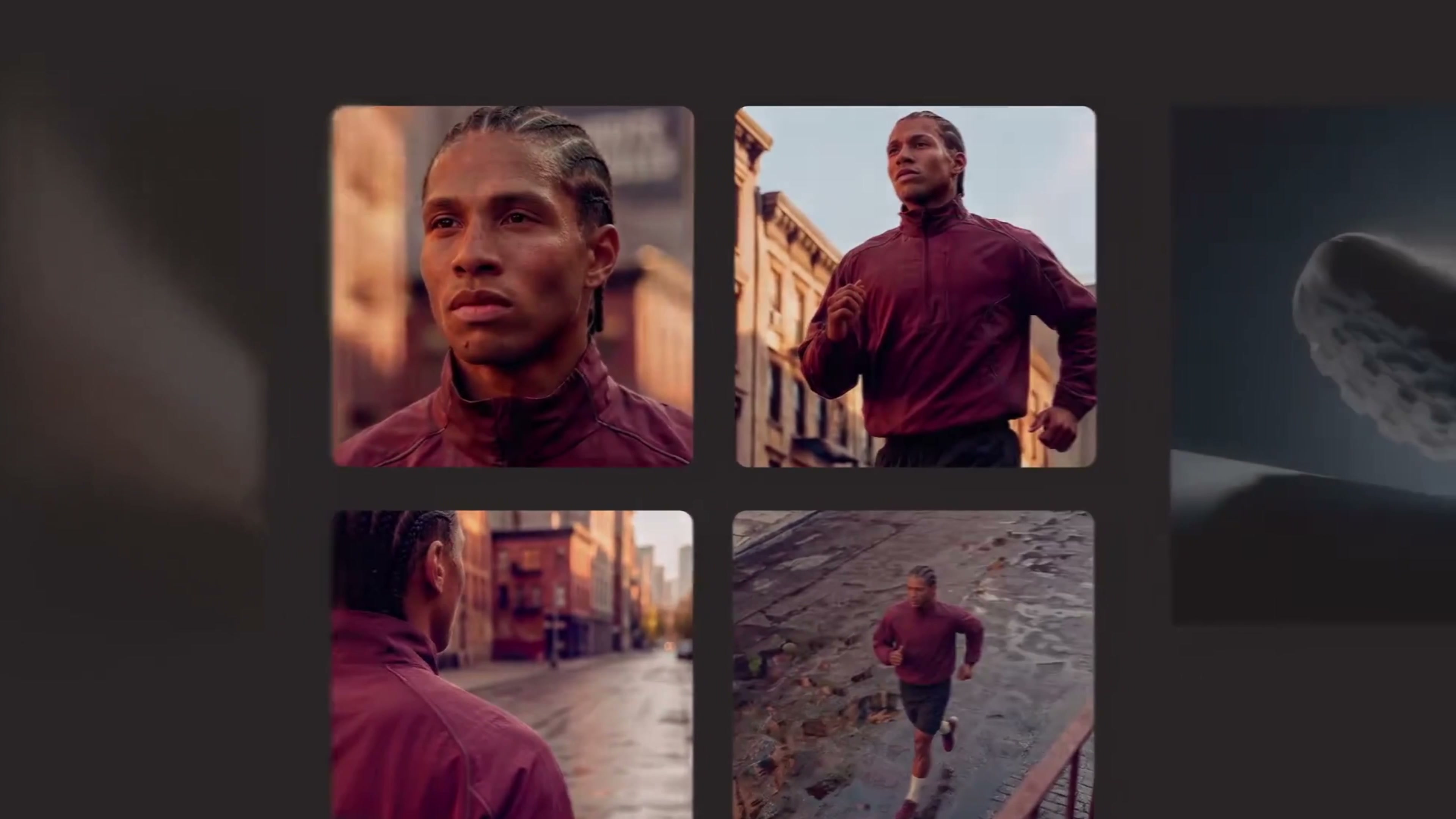
The fourth section is also a key focus on the cover: Reframe from Variations. The original image is a figure in a burgundy blazer and running on a city street. Closeup, Extreme closeup, Back view and Wide are checked in the panel, and then front close-up, close-up, back view and wider environment lens are generated at one time.
This is more useful than simply cropping. Cropping can only take information from the original image, Reframe it will fill out the space outside the original image and try to maintain the characters, clothing and street context. My approach is to first fix three elements: the character’s identity, the color of their costume, and the time and location; then treat shot size and camera angle as variables. After generation, check one by one whether the hairstyle, facial features, clothes zipper and street light are continuous.
If you want to divide the short film into mirrors, this step can be written directly according to the lens table: panoramic account of the environment, medium view of the action, close view of the expression, back view of the transition. First, clarify the narrative purpose of each shot; this will make it easier to filter out usable takes than trying to check all options at once.
05 | Relight: change the light, don't change the material
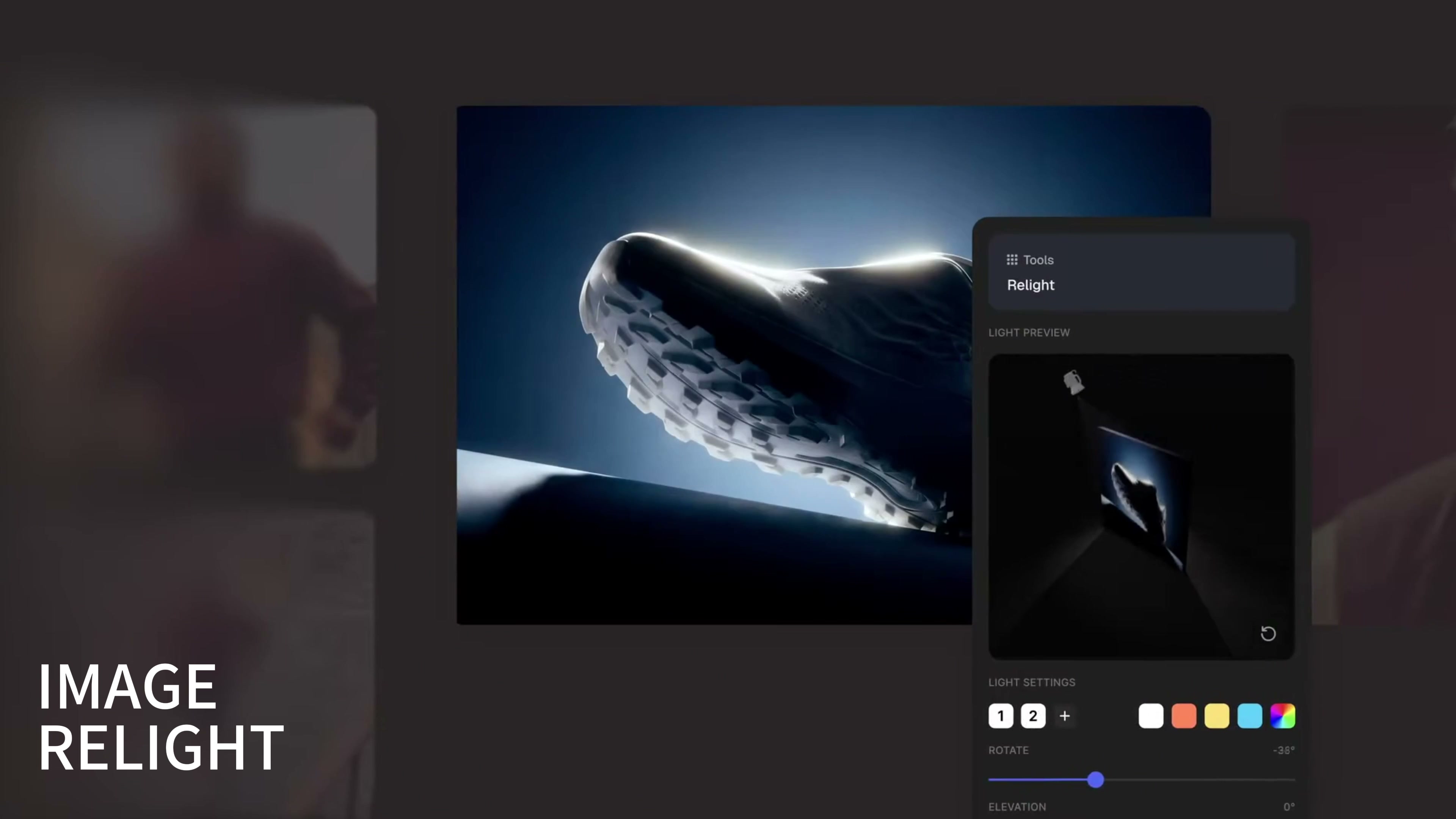
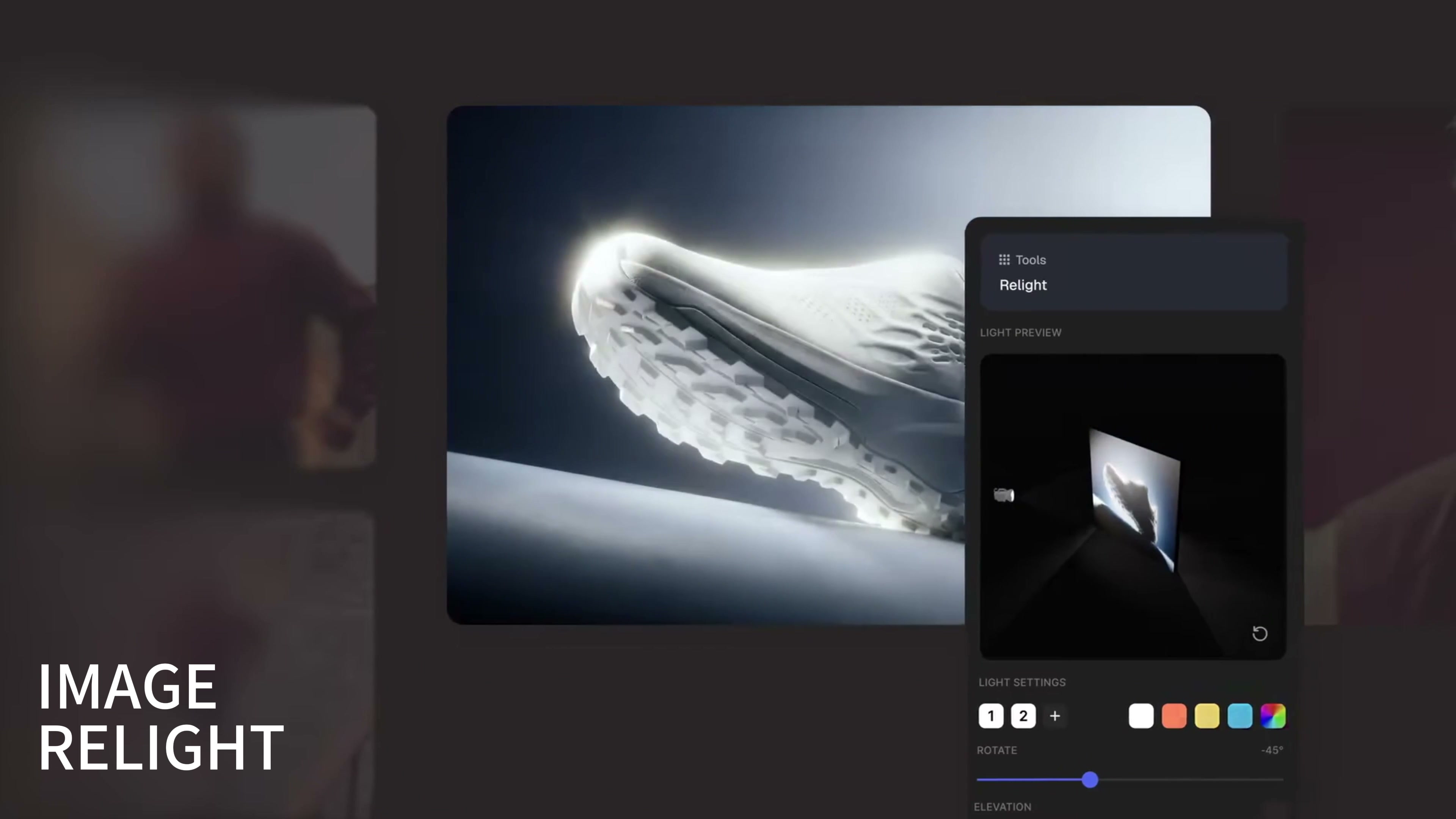
The last tool is Relight. The video uses a dark-colored sneaker as an example; on the right panel, you can see the light source preview, light source number, color, rotation, and height controls. After the adjustment, the originally dark shoes with blue outline light are pushed into the brighter high-profile light effect, and the sole texture and outline are clearer.
Relighting is best used to compare visual directions. For example, the same product can test cool color technology light, warm color sunset light, or clean e-commerce shed light. However, I will focus on two areas that are prone to problems: whether the highlights eat the material and whether the shadow direction conforms to the product structure. The upper, leather, metal, and transparent materials react differently to light; you can’t judge solely by whether the image has become brighter.
How would I arrange these five tools?
The video demonstrates the features in the following order: Generator, Editor, Upscaler, Variations, and Relight. When I really do the project, I am more used to putting the Upscaler at the end: first use the Generator to build the basic diagram, use the Editor to fix the obvious problems, then use the Variations to expand the lens, use the Relight to unify the light direction, confirm the whole picture and then enlarge it in batch.
Each step only deals with one kind of problem, rework will be much less. The generation stage does not tangle pixels, does not redesign the composition when changing colors, locks the characters and clothing when expanding the lens, protects the material when dimming, and only pays attention to the final details when zooming in. This division of labor is easier to control than repeatedly asking the model to "make the whole picture better.







That's pretty good.